Opening an SMM panel dashboard for the first time can feel overwhelming — service lists, wallet balances, order forms, and API sections all crammed onto one screen. This walkthrough breaks down exactly what each part of a typical panel dashboard does, so your first order feels simple instead of confusing.
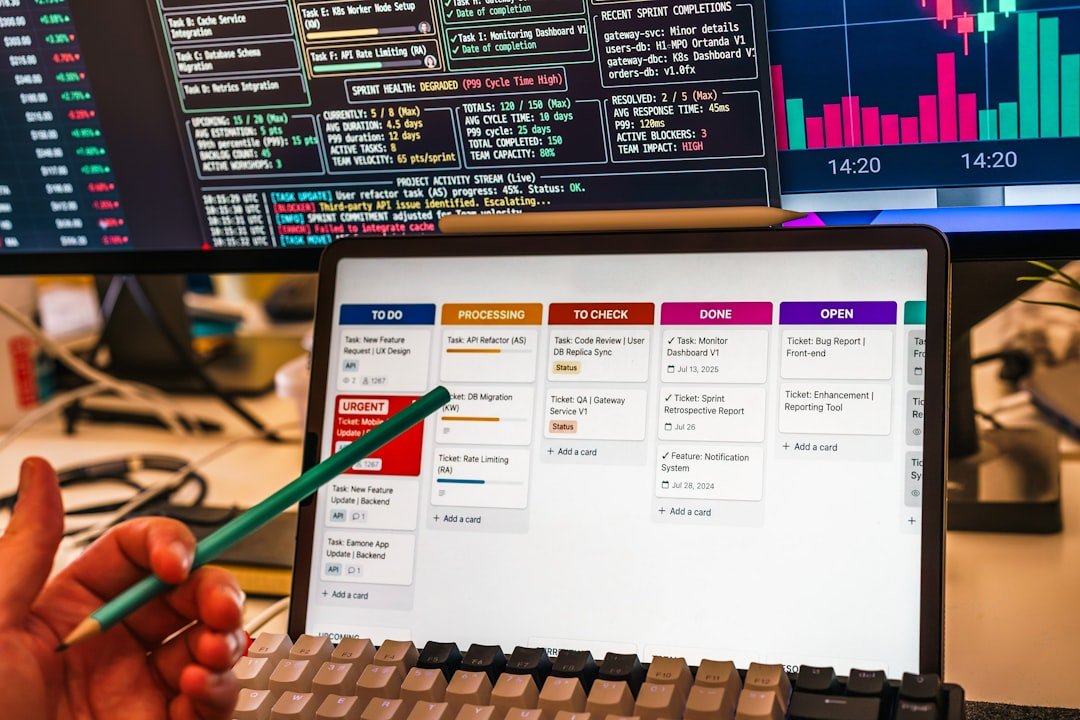
The Main Sections of an SMM Panel Dashboard
- Wallet / Balance — shows your current funds, usually topped up via UPI, Cashfree, or card before placing any order.
- Services List — a categorized, searchable list of every available service (Instagram followers, YouTube views, etc.) with pricing per 1000 units.
- New Order Form — where you select a service, paste your link, choose quantity, and submit.
- Order History — a log of all your past and current orders with their status (see our full guide to order statuses).
- Support / Tickets — where you contact the panel if something needs attention.
- API section — relevant mainly for resellers or developers integrating the panel programmatically.
For the basics of how these platforms work overall, see our guide to what an SMM panel is.
Placing Your First Order: Step by Step
- Add funds to your wallet using a secure payment method.
- Search or browse the services list for the platform and service type you need.
- Check the price per 1000 and any listed refill guarantee or delivery speed.
- Paste your public profile or post link — never your password — into the order form.
- Select your quantity and review the total cost before confirming.
- Submit and track your order status from the Order History section.
Common Dashboard Terms Explained
| Term | What It Means |
|---|---|
| Min/Max | The minimum and maximum quantity allowed per order for that service |
| Start Time | How quickly delivery typically begins after ordering |
| Speed | How fast the ordered quantity delivers once started |
| Refill | Whether and for how long the panel replaces any drop (see our refill guarantee guide) |
| Cancel Button | Lets you cancel an order before it starts processing, usually with a refund |

Tips for Navigating a Dashboard Efficiently
- Use the search bar within the services list rather than scrolling through every category
- Bookmark or favorite services you order frequently, if the panel supports it
- Check the Min/Max and refill details before every order, since they vary service to service
- Keep your order confirmation emails or screenshots for reference
Frequently Asked Questions
Do I need technical knowledge to use an SMM panel dashboard?
No — most dashboards are designed for non-technical users. The API section is optional and mainly relevant for resellers or developers.
Why can’t I find a specific service in the dashboard?
Services are usually organized by platform and category, so try the search bar with specific keywords, or check if the service is temporarily out of stock.
What does it mean if a service shows as unavailable?
This usually means a temporary supplier shortage. Reliable panels typically restock quickly or list an alternative similar service.
Can I edit an order after submitting it?
Most panels don’t allow editing once submitted, but you can often cancel an order before it enters ‘In Progress’ status, subject to the panel’s specific policy.
Is my payment information safe in the dashboard?
Reputable panels use secure, established payment gateways like UPI, Cashfree, or card processors, and never store sensitive payment details directly.
Final Thoughts
Once you understand the basic sections — wallet, services, order form, and history — an SMM panel dashboard becomes simple to navigate for any future order. Explore a clear, easy-to-use dashboard at SMM Panel India.